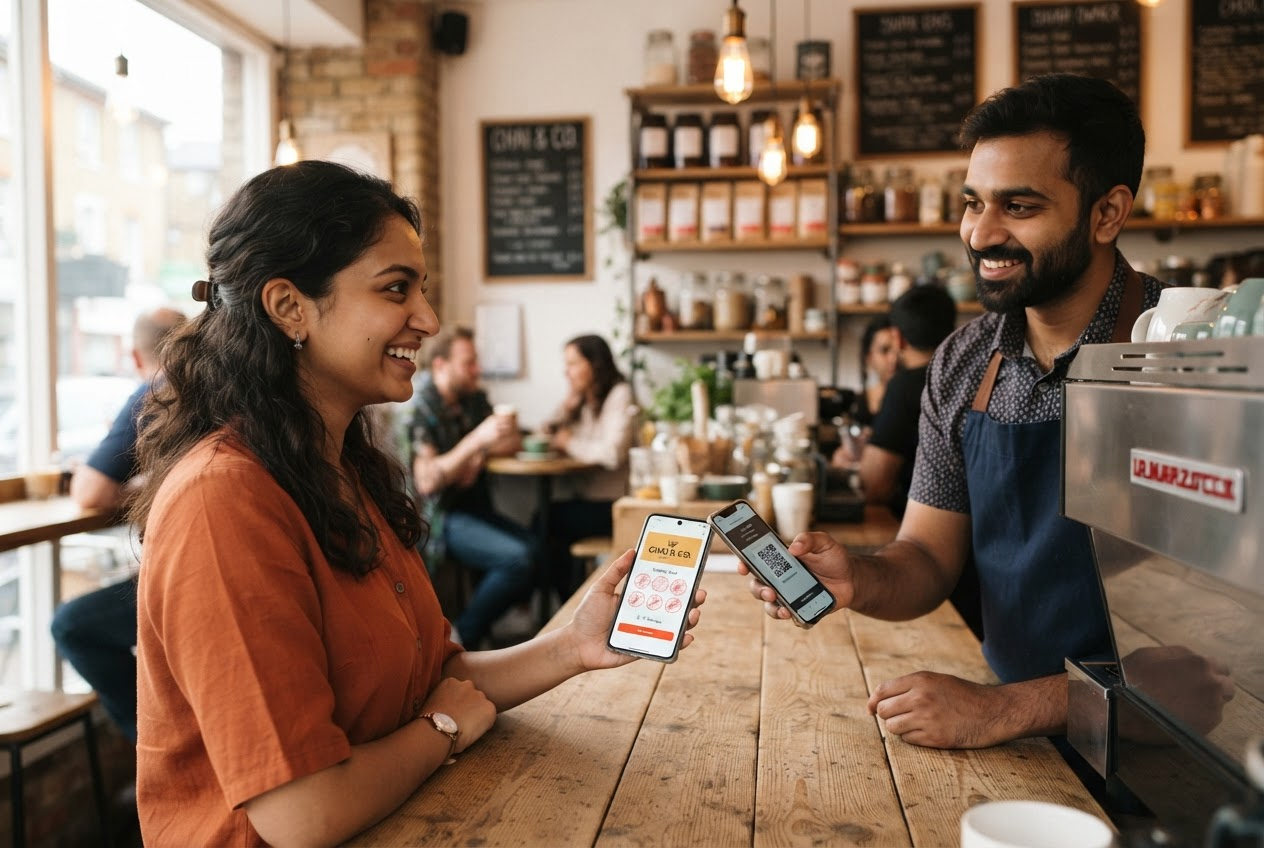
Do this
- ✓Wall QR = new customers only.
- ✓Every stamp after that comes from their phone QR.
- ✓Always confirm the name before you stamp.

The old punch-card loop, on the customer's phone. Staff only need the camera on Scan. No extra machine, no app store.
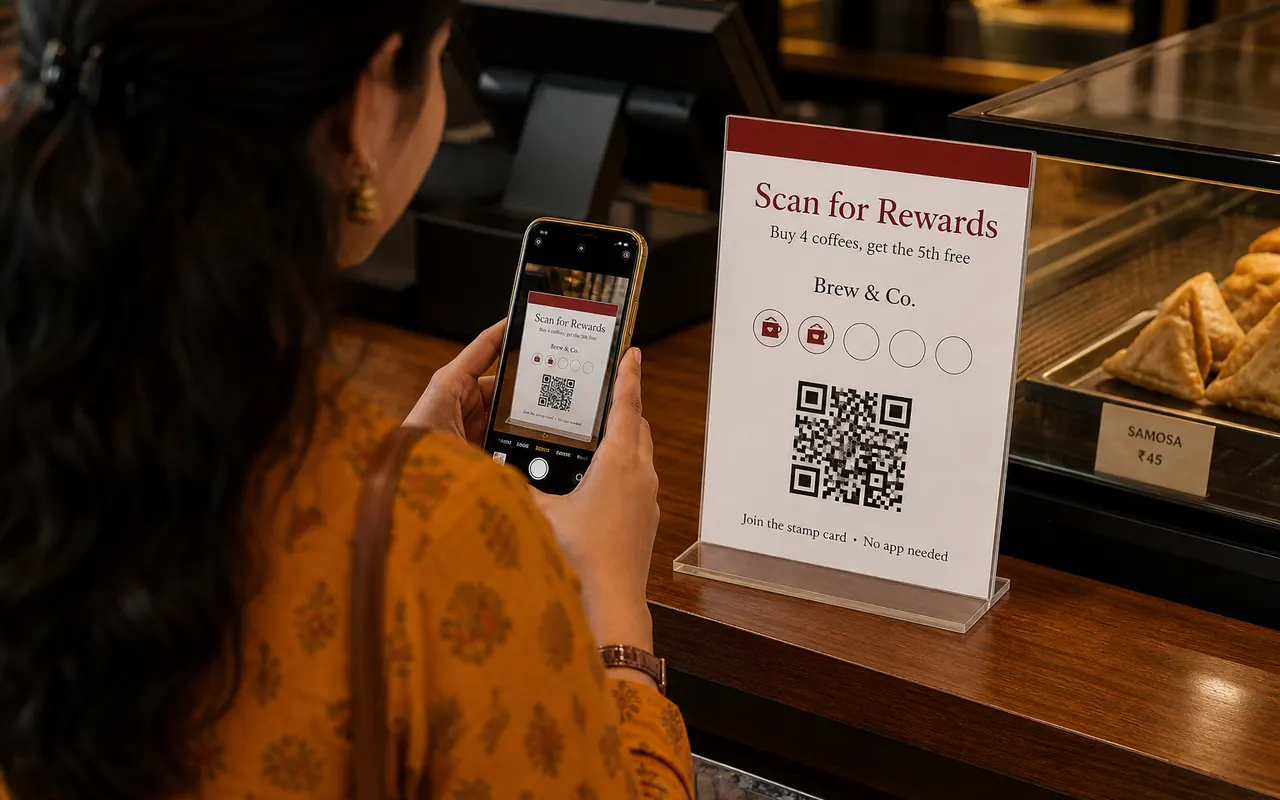
Print the poster
Sign up, type your offer, download the QR poster. Stick it at the counter — window, table, or bag stuffer. Five minutes max.
Customer scans once
New customer scans your poster. Their stamp card opens right in Chrome or Safari. No app to install, no long form.
Staff taps to stamp
Every visit: customer shows their card QR, staff points the camera, confirms the name, stamps. Two seconds at the counter.
Card full — reward out
Buddyzo shows you the card is full. Hand over the free item first, then tap redeem. Card resets, loop starts again.
Left is the customer. Right is the shop. The same loop, said out loud.

Kya mujhe koi app download karni padegi?
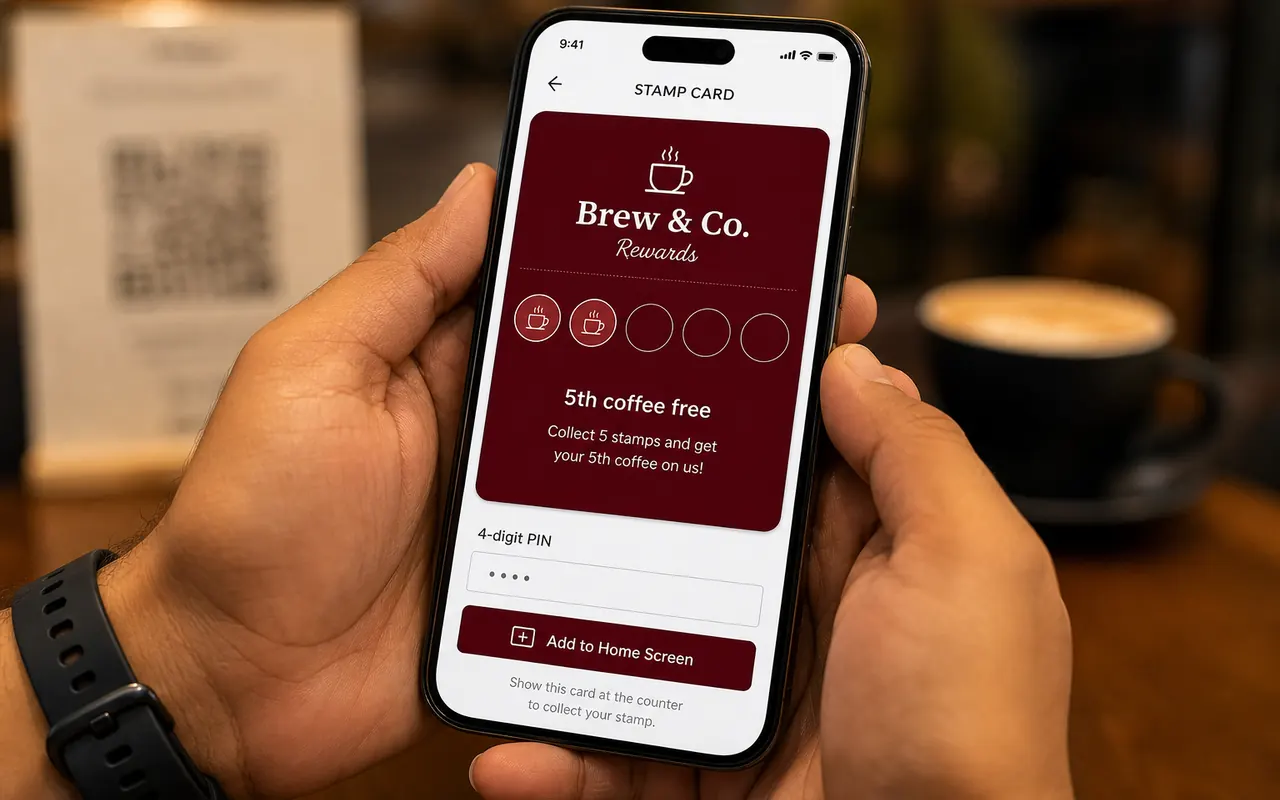
For the customer
First visit: scan your counter poster, pick a username, set a 4-digit PIN. Card is ready. Every visit after that — just open the card and show the QR. Never scan the wall poster again.
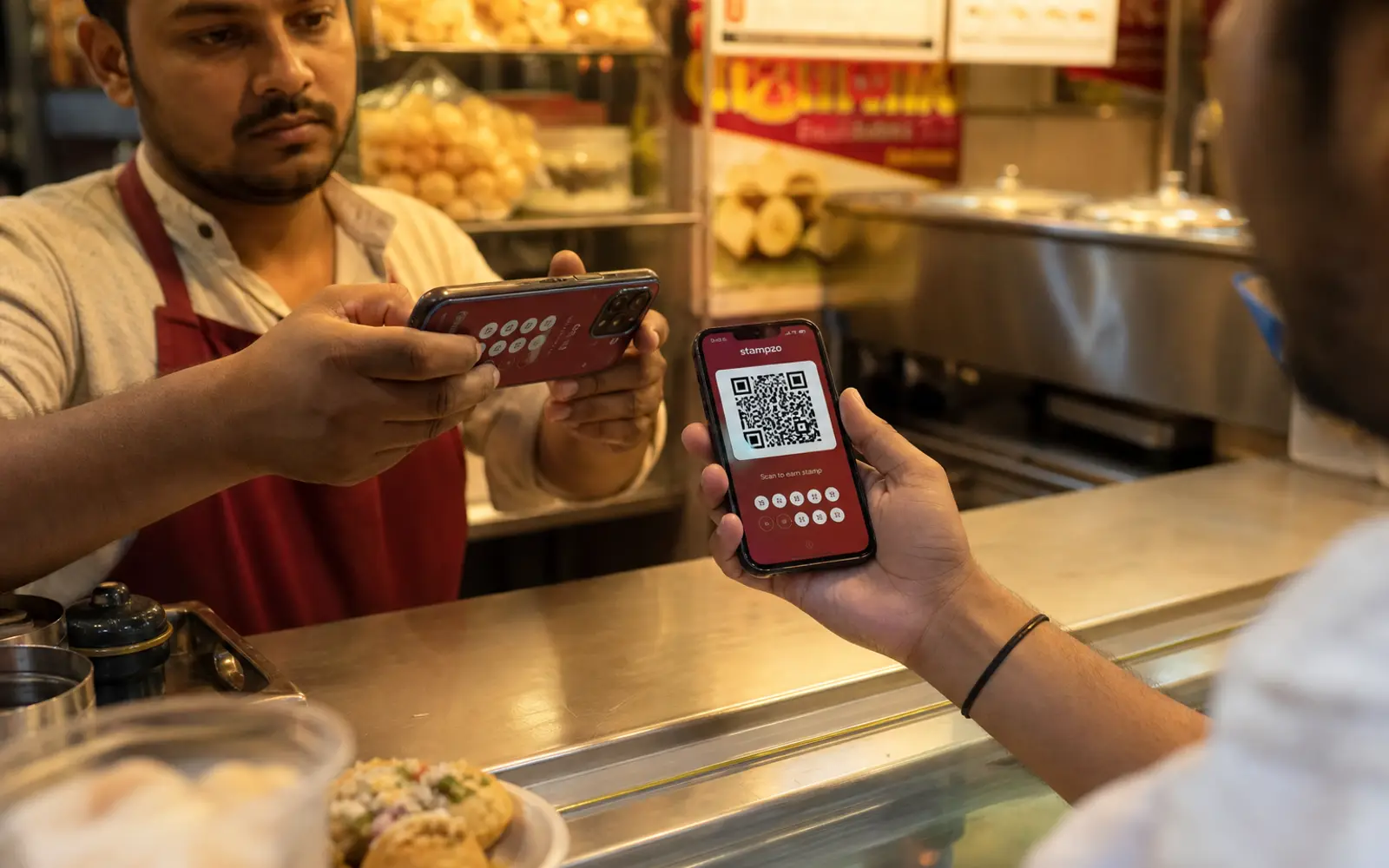
For the staff
Open Buddyzo, tap Scan. Point at the QR on their card. Name appears on screen — confirm it, stamp. Card full? Hand over the reward first, then tap redeem. Repeat.
Customer side
Tell a new customer these four things — that's the whole onboarding.
Scan the poster — once
First join only. Card opens on the phone, no app needed.
Set a PIN
4 digits keeps stamps safe. Same PIN on a new phone gets stamps back.
Show QR every visit
Open the saved card, show the QR code. Never scan the wall poster for stamps.
Collect, then claim
Full card? Staff sees it and hands over the reward. Card resets.
Staff side
Same order every customer, every shift.
New person? Point to poster
Regulars already have their card — skip this for them.
Open Scan, aim at their phone
Name appears. Confirm it matches who's standing there.
Tap stamp
One per visit, or per item — whatever your program says.
Full card: give first, redeem second
Hand over the free item, then tap redeem so the card resets.
Common mix-up
Do this
Don't
Next: write the offer, then print. First program is free.
First program is free
Create the shop in minutes. Phone, desktop, or both. First program is free.